"How
to set up Outlook to work with your e-mail account"
Shown Below are
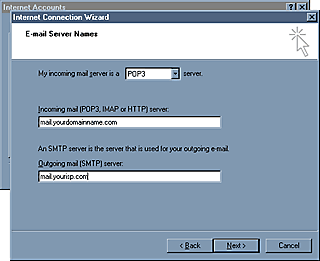
the server settings used in Outlook. Make sure the incoming
mail server type is POP3 as shown below. In the Incoming mail
server field type mail.yourdomainname.com
(NOTE: yourdomainname
is your web address and if your domain name is an .org
or .net extension then you will need to use that extension instead
of the .com extension).
STILL CONFUSED? Click
Here for examples.
In the Outgoing mail server you will need to put your ISP's
(Internet Service Provider's) Mail Server. This may require you to
contact your ISP and asking them to assist in setting up the
"Outgoing mail [SMTP] server".
If Earthlink was your ISP your Outgoing mail server would look
like this...
Example: mail.earthlink.net
(NOTE: if you already
have an e-mail account set up in Outlook Express that is working
fine, the current setting for that e-mail account's Outgoing mail
server should work for the new account you are creating. Just copy
those settings and paste them into your new accounts Outgoing Mail
server field.)
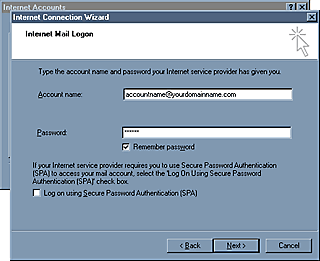
The window below
is where we enter the logon information need to access the mail
server. The Account name must be your entire e-mail address as
shown below. You may choose to enter your password and check the
"Remember password" box. This will eliminate the need to
enter your password each time you check this mail account.
When you click the Next>
button on the window above another window will appear titled CONGRATULATIONS
click the Finish button and you are done.
Repeat Add/Mail...
to add additional E-Mail accounts.
This concludes the
Outlook Express Set-Up tour.
Click Here to return to the Main
FAQ page.


